The proxy server allows you to connect to Williams-Only resources from off campus by redirecting your web traffic through a computer on campus. The proxy server will ask for your Williams username and password. This information is not passed to the site, but is used by the proxy server to grant you access.
Am I connected?
It is important to use the proxy server only when you need to access a Williams resource. If you are not accessing a restricted site, turn it off. The proxy server will make your internet connection slower, since each page you load will be filtered through the Williams network.
How do I set up the proxy server?
-
-
OS X, Versions 10.0+
- Connect to your Internet Service Provider
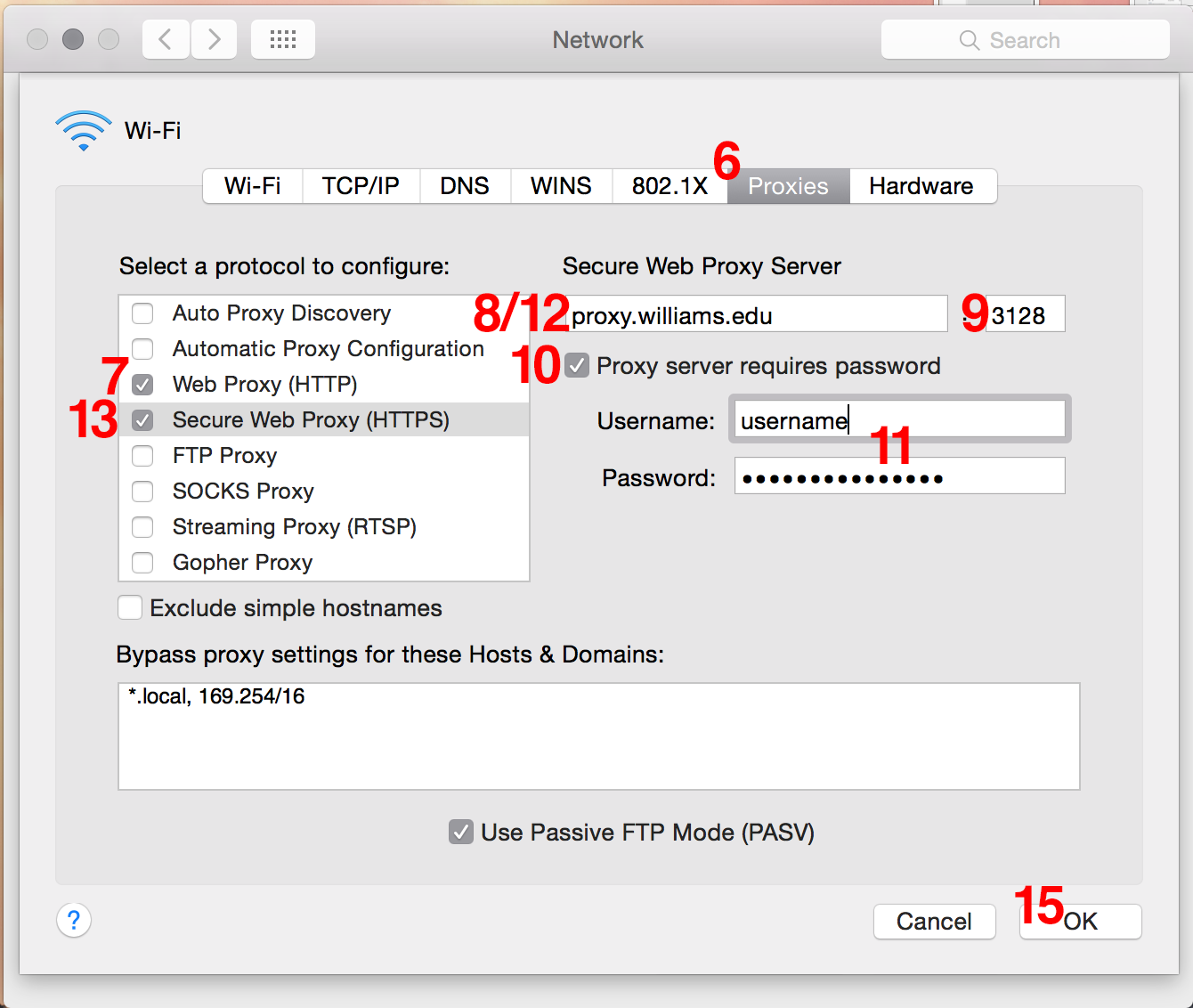
- Go to Apple | System Preferences | Network
- In "Location" choose "Automatic" (even if it is showing)
- Choose the name of your connection (e.g. AirPort or WiFi or Ethernet)
- Choose "Advanced"

- Open the "Proxies" tab
- Check the box for "Web Proxy (HTTP)"
- In the "Web Proxy Server" box, type proxy.williams.edu
- In the next box, (after the colon) type 3128
- Check the box that says, "Proxy server requires password"
- Enter your Williams ID (unix) and password
- Check the box for "Secure Web Proxy (HTTPS)"
- In the "Secure Web Proxy Server" box, type proxy.williams.edu
- Repeat steps 9-11 (from above)
- Choose "OK" and then "Apply"
To test the proxy server:
- Reload this page
- When the box pops up, enter your Williams username (without @williams.edu) and password.
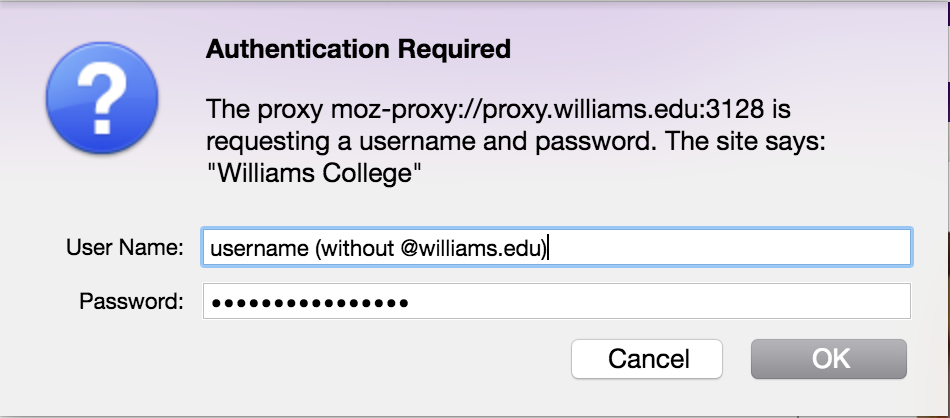
- Click OK. Under "Am I connected?" The box should say you are connected through the proxy server.
When you are finished using Williams resources:
- Go to Apple | System Preferences | Network
- Choose the name of your connection (e.g. AirPort or WiFi or Ethernet)
- Choose "Advanced"
- Open the "Proxies" tab
- Uncheck the box for "Web Proxy (HTTP)"
- Uncheck the box for "Secure Web Proxy (HTTPS)"
- Choose "OK" and then "Apply"
The proxy server settings will be saved, so the next time you want to use the proxy server, you'll just need to recheck the "web proxy" and "secure web proxy" boxes and click "OK" and then "apply".
Note: Some users have had trouble connecting to the proxy server using Safari. If the problems persist, try using Firefox instead or ask for help.
-
OS X, Versions 10.0+
- Open Firefox
- Go to the Firefox menu, then scroll down and choose Preferences
- Choose Advanced in the left-hand menu
- Click on Network
- Click on Settings...
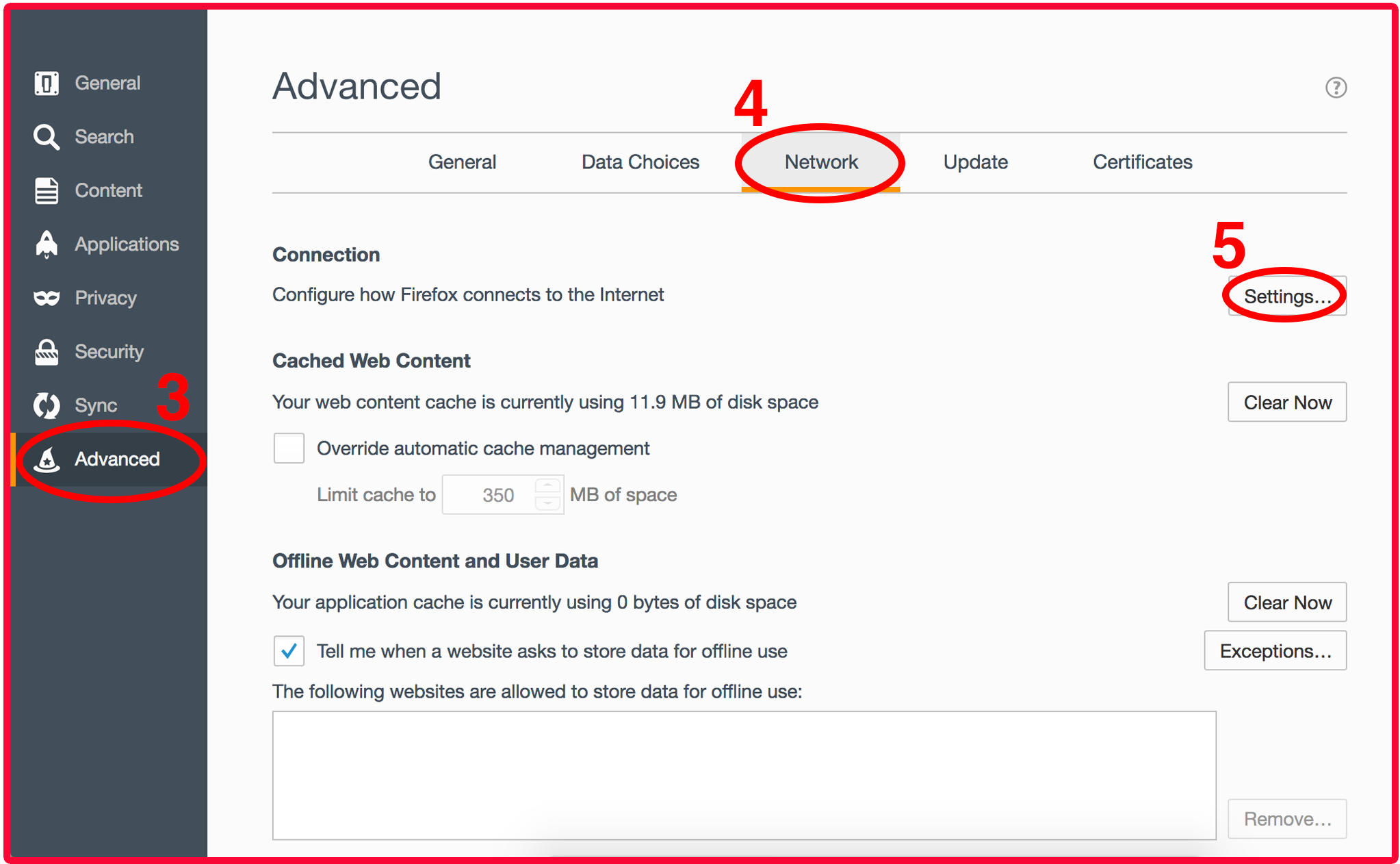
- Click Manual proxy configuration
- Type in proxy.williams.edu
- Type in port 3128
- Click "Use this proxy for all protocols"
- Click "OK"

- Close the preferences tab
To test the proxy server:
- Reload this page
- When the box pops up, enter your Williams username (without @williams.edu) and password.
- Click OK. Under "Am I connected?" The box should say you are connected through the proxy server.
When you are finished using Williams resources:
- Return to Settings... and change the button back to No Proxy. The proxy server settings will be saved, so the next time you want to use the proxy server, you will just need to click the Manual proxy configuration button to re-enable the proxy server.
-
-
-
Note: The screens on this page are from Chrome on Windows 10. Your controls may appear differently.
- Open Chrome and go to the "hamburger" menu in the top right.
- Go to Settings
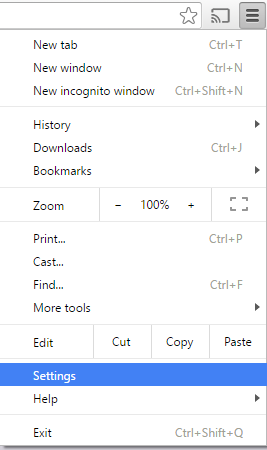
- Scroll down and choose Show advanced settings
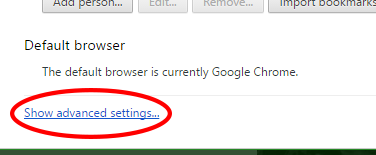
- Scroll down to Network and click on Change Proxy Settings

- Choose the Connections tab, then LAN Settings...

- Click on Use a Proxy Server for your LAN
- Type in proxy.williams.edu in the address and 3128 in the port fields

- Keep clicking OK until you have closed all the tool windows
To test the proxy server:
- Reload this page
- When the box pops up, enter your Williams username (without @williams.edu) and password.

- Click OK. Under "Am I connected?" The box should say you are connected through the proxy server.
When you are finished using Williams resources:
- Return to LAN Settings and unclick the Use a Proxy button. The proxy server settings will be saved, so the next time you want to use the proxy server, you will just need to click the Use a Proxy button to re-enable the proxy server.
-
Note: The screens on this page are from Firefox 40 on Windows 10. Your controls may appear differently.
- Open Firefox and go to the "hamburger" menu in the top right.
- Go to Options
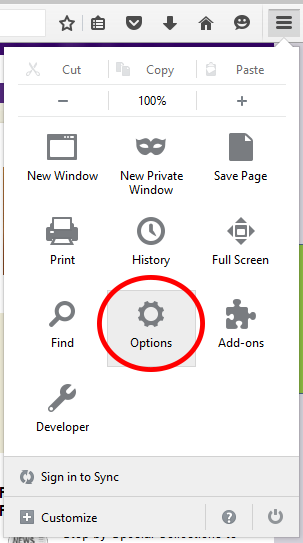
- Click on Advanced, then the Network tab, then Settings...

- Select Manual proxy configuration
- In the box labeled "HTTP Proxy" type proxy.williams.edu
- In the box labeled "Port" type 3128
- Click OK for the Connection Settings Box and OK for the Options box

To test the proxy server:
- Reload this page
- When the box pops up, enter your Williams username (without @williams.edu) and password.
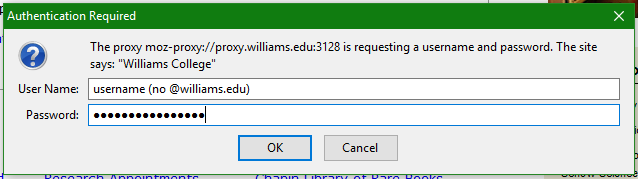
- Click OK. Under "Am I connected?" The box should say you are connected through the proxy server.
When you are finished using Williams resources:
- return to Settings... and change the button back to No Proxy. The proxy server settings will be saved, so the next time you want to use the proxy server, you will just need to click the Manual proxy configuration button to re-enable the proxy server.
-
Note: The screens on this page are from Firefox 40 on Windows 10. Your controls may appear differently.
- Open Edge and go to the three dots menu in the top right.
- Go to Settings

- Scroll down and click View advanced settings

- Click Open proxy settings

- Turn Use a proxy server to on.
- In the box labeled "Address" type proxy.williams.edu
- In the box labeled "Port" type 3128
- Click Save

To test the proxy server:
- Reload this page
- When the box pops up, enter your Williams username (without @williams.edu) and password.

- Click OK. Under "Am I connected?" The box should say you are connected through the proxy server.
When you are finished using Williams resources:
- Return to View advanced settings -> Open proxy settings and change turn Use a proxy server to Off. The proxy server settings will be saved, so the next time you want to use the proxy server, you will just need to re-enable the proxy server.
-
Note: The screens on this page are from Microsoft Internet Explorer 11 on Windows 7. Your controls may appear differently.
- Open Internet Explorer
- Click on the gear icon in the top right
- Choose Internet Options
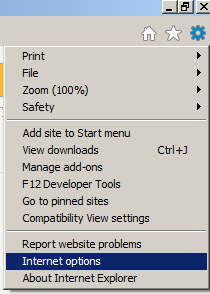
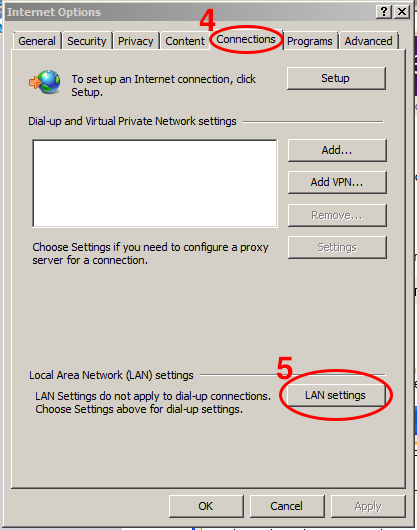
- Select the Connections tab
- Click LAN settings
- In the address box, type http://proxy.williams.edu
- In the port box, type 3128
- Click OK to close all boxes

To test the proxy server:
- Reload this page
- When the box pops up, enter your Williams username (without @williams.edu) and password.

- Click OK. Under "Am I connected?" The box should say you are connected through the proxy server.
When you are finished using Williams resources:
- Return to Internet Options->Connections->LAN Settings and uncheck Use a proxy server. The proxy server settings will be saved, so the next time you want to use the proxy server, you will just need to check the box to re-enable the proxy server.
-
-
-

- Go to Settings.
- Tap Wi-Fi.
- Tap the name of the Wi-Fi network to which you are connected
- In the HTTP Proxy section at the bottom of the screen, tap Manual
- Fill in the Server: proxy.williams.edu
- For Port enter: 3128
- Slide Authentication to On
- Enter your Williams Username
- Enter your Williams Password
When you are finished using Williams resources:
- Turn off the proxy server by following steps 1-4 but tap Off instead of Manual. You will need to re-enter these settings each time you want to use the proxy server.
-
- Go to Settings
- Tap and hold Wi-Fi
- Tap your current wireless network
- Choose Manage network settings

- Check Show advanced options
- Click on Proxy settings
- Click on Manual
- Fill in the Server: proxy.williams.edu
- For Port enter: 3128
- Check Authenticate server
- Enter your Williams Username
- Enter your Williams Password
- Tap Save

When you are finished using Williams resources:
- Turn off the proxy server.
-
Megamenu Social